Showing posts with label #8. Show all posts

Tuesday, October 9, 2007

Week 4 #8 - Advertising your feed

If you scroll down to the bottom of your Blogger blog you'll see the following link - Subscribe to:Posts (Atom). If people were to click on the link they could add the address to their newsreader to subscribe.

If you look at the sidebar of my blog you'll notice a nice little orange icon with a link Subscribe in a Reader. What I've done in this blog is to set up my feed with Feedburner. It's totally free and quite easy, especially now that Google has bought Feedburner.

Once you've registered at Feedburner:

  1. Type your blog address or feed address in the box where it says Burn a feed right this instant and click on the next button.


  2. Feedburner will confirm the feed. In this example I am adding the library blog's feeds. It actually displays 2 feeds Atom and RSS and asks me to choose. It doesn't matter which format you choose. Click in the circle next to one of them and click on the next button.
  3. You'll now be asked to give a title for your feed and to choose your Feedburner feed address. Then click on the Activate Feed button.

  4. You can set up stats in the next step but let's click on the link to go directly to Feed management.

Promoting your FeedBurner feed on your Blogger site (thanks to Feedburner for)
  1. Click on the Publicize tab.

  2. Click Chicklet Chooser. The form shown below contains options that link to your FeedBurner feed.
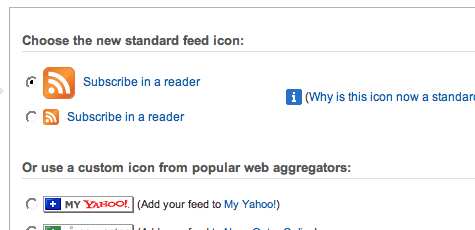
  3. Click the radio button next to the button you want to display on your site. eg Subscribe in a Reader

  4. Click the drop-down and select "Blogger" to add the chicklet as a Blogger widget and click the Go button.
  5. .

  6. Blogger will open in a new window. Follow the prompts there to continue to add the new widget

  7. .
Go check out your blog and see if it all worked.

Feedburner is fantastic. I can read the stats for the number of subscribers to my blog. I can create email signatures to advertise my blog. If you've ever received an email from me you may have noticed the scrolling signature.

Anyhoo, give it a go.

Cheers, webgurl

Wednesday, October 3, 2007

Week 4 #8 Organising your feeds into folders

Maybe it's the librarian in me wanting to have my feeds in nice little folders but it does help if you have a lot of feeds.

To organise your Bloglines feeds into folders:

  1. Click on the edit link at the top of the left pane.
  2. Click on the New Folder link.
  3. Type the name of the folder in the pop-up window and click on the OK button.
You can simply drag the feeds that are in the left pane into those folders you have created. How cool is that?

Cheers, webgurl

Week 4 #8 Adding a blogroll using Bloglines

After organising my feeds into folders, which I recommend to everyone, I decided to add a blogroll to my sidebar. A blogroll is a list of the blogs that you read.

To add a blogroll in Blogger:

  1. Go to Bloglines and click on the share link at the bottom left.
  2. Type in the name of the folder you want to display.
  3. Click on the Generate HTML button.
  4. Highlight and copy (Ctrl-C) the Javascript given at the top.
  5. Go to the Blogger dashboard and click the Layouts link.
  6. Click on Add page element.
  7. Click on the Add to blog for HTML/Javascript.
  8. Add a title for your blogroll e.g. mine is Tech blogroll
  9. Click in the big box and paste (Ctrl-V) the javascript.
  10. Click Save changes button.
  11. Save your template.
Go check your blog and view your blogroll.

Cheers, webgurl

Tuesday, October 2, 2007

Week 4 #8 RSS & News Readers

Well I already had a Bloglines account that I only used occasionally. I actually have access to about five newsreaders; Bloglines, My Yahoo, Google Reader, Mozilla Firefox and Mozilla Thunderbird. Mostly I use Firefox as I always have this open.

After remembering the login, no mean feat I must say, I set about adding a few more feeds. I actually organised them as I went by putting them in folders. I used the search box in the top right pane to search for feeds on particular subjects of interest; library, web design and technology etc.

I followed the instructions for sharing the blogroll (or list of feeds) only to find that these instructions are out of date.

To adjust your settings to share your Blogroll:

  1. Click on the Account link at the top right.
  2. Click on the Blog settings link at the right.
  3. Select Yes, publish my Blogroll.
  4. Click the Save changes button.
  5. Click on the share link at the bottom left.
  6. You'll find the link to the public version of your Blogroll at the bottom right.
Webgurl's Bloglines blogroll can be found at http://www.bloglines.com/public/webgurl.

If you want to add my feed to your Bloglines blogroll the address is http://feeds.feedburner.com/23squared

Cheers, webgurl
